

Why Choose an Optical Mouse for Office Work?
An Optical Mouse Office setup may look like a small choice, yet it shapes everyday work. The sensor sits beneath your hand, tracking movement as you move a cursor across a screen. No ball to clean. Fewer moving parts. For many desks, that means straightforward setup and dependable tracking on a suitable surface.
The World Health Organization reported that about 1.71 billion people worldwide live with musculoskeletal conditions. This figure covers many conditions and causes; it does not show that mouse choice alone prevents pain. Still, it highlights why workplace comfort deserves attention. The U.S. Occupational Safety and Health Administration also recommends arranging computer workstations to support comfortable posture and reduce strain. A mouse that feels natural, fits the user’s hand, and responds predictably can support that practical goal.
Details matter. A compact mouse may feel cramped during long editing sessions, while a larger model can be awkward in a crowded workspace. Optical tracking can also perform differently on glossy or transparent surfaces, so a mouse pad may help. No device fixes poor posture or excessive clicking. An optical mouse is not magic. Before choosing one, consider comfort, sensor performance, connection type, and the desk surface. These factors make the case for an optical mouse clearer—and keep the decision grounded in everyday use, not marketing claims.
What Defines an Optical Mouse?
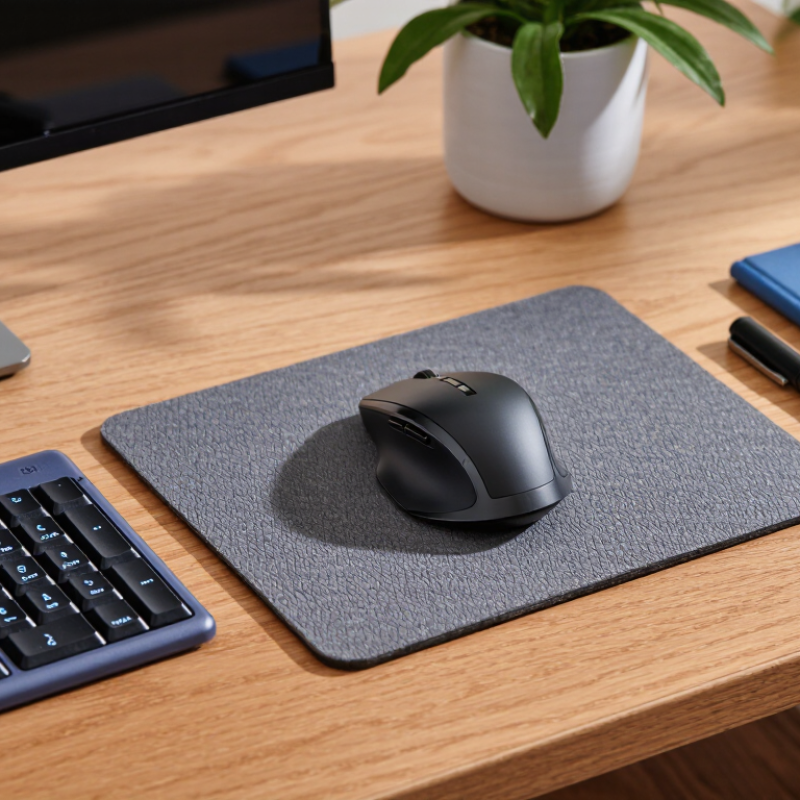
An optical mouse uses light and a small image sensor to track movement across a surface. A light source, usually an LED, illuminates the desk or mouse pad. The sensor repeatedly captures tiny surface details, such as fibers or texture patterns. A processor compares these images and calculates how far the mouse has moved. The cursor then follows that movement on screen. No rolling ball is needed, so dust buildup inside the tracking mechanism is less of a concern. That is the basic definition. Simple, but precise.
For office work, this design can provide steady cursor control for editing documents, navigating spreadsheets, or selecting small interface buttons. Performance still depends on the surface. A matte desk or ordinary mouse pad usually works well, while clear glass or highly reflective surfaces may confuse some sensors. One detail is easy to overlook: a mouse can feel smooth but still track poorly on a shiny table.
Tips: Test the mouse on your actual desk. If the cursor skips, try a plain, non-glossy mouse pad. Keep the sensor area clean, and check pointer speed before long editing sessions. Small adjustments can help more than buying extra features. Conversely, no setting can fully fix every surface. That part takes a little trial and error.
How Optical Tracking Works on Office Surfaces
An optical mouse tracks movement by lighting the surface beneath it and capturing rapid images with a tiny sensor. The sensor compares each image with the next, detecting how nearby edges and textures shift. Those changes become cursor movement on screen. No ball to clean.
On a matte desk, the sensor can usually find enough detail to track steadily. A faint wood grain, paper fibers, or a mouse pad’s woven pattern gives it visual reference points. Smooth, glossy glass is less reliable because it may reflect light or offer too little texture. Dark surfaces can also affect some models. Results vary, so testing the mouse on your actual desk is more useful than assuming every optical sensor behaves the same.
A stable surface matters. If the cursor skips while you edit a spreadsheet, check for dust near the sensor and try a plain mouse pad. Keep the mouse flat, too; lifting it briefly can interrupt tracking. Small things.
It is easy to blame the mouse when a cursor feels jumpy, but surface finish, lighting, and sensor design all play a part. Optical tracking is practical for everyday office work, though not flawless. A patterned desk mat may look harmless and still confuse the sensor. Real desks are imperfect. That is worth remembering.
Why Choose an Optical Mouse for Office Work?
How optical tracking works on common office surfaces
An optical mouse illuminates the surface and uses a sensor to compare successive images, detecting movement from changes in surface detail. Matte, textured surfaces usually provide clearer visual features; clear glass and mirror-like surfaces may provide too little usable detail. Ratings are a qualitative guide, not laboratory measurements, and results vary by mouse and surface.
Which Office Tasks Benefit from Optical Tracking?
Optical tracking suits everyday office tasks that depend on steady cursor movement. In spreadsheets, it helps users select individual cells, adjust column edges, and drag ranges without a physical ball collecting dust. For email and document work, small movements make it easier to place the cursor inside a sentence or click a compact toolbar control. Matte surfaces usually provide dependable tracking. Smooth, opaque surfaces work well.
File management also benefits. Moving a folder between windows or dropping an attachment into a message requires controlled pointer placement. Optical mice can handle these actions consistently during long stretches of routine work. That matters when a desk is shared or a mouse is moved between meeting rooms. No special setup is usually needed. Still, precision depends on the surface and the sensor. A glossy desk, clear glass, or a scratched pad may cause uneven movement.
For design reviews, presentation editing, and detailed form entry, steady tracking can reduce missed clicks. It does not replace a comfortable grip or sensible breaks. A user may still tense their wrist while navigating tiny controls. That part is easy to overlook. Test the mouse on the actual desk, not just a showroom surface. If the pointer skips near the edge of a glass table, a plain mouse pad may solve the problem. It is a small fix, but not every office remembers to keep one nearby.
How Optical Mice Compare on Accuracy, Comfort, and Maintenance
An optical mouse tracks surface movement with an LED and image sensor, so it avoids the ball-and-roller buildup found in older designs. On a clean desk mat, the pointer usually moves predictably. Accuracy still depends on the surface: clear glass or a glossy, patterned desk can confuse the sensor. A high sensitivity setting is not the same as greater precision; small hand movements may simply move the cursor farther.
Comfort is more personal than a specification sheet suggests. A mouse that feels fine for five minutes may strain the wrist after a long spreadsheet session. The EU-OSHA ESENER 2019 report found repetitive hand or arm movements were identified as a workplace risk factor by 65% of surveyed establishments. That makes grip, reach, and wrist posture worth checking during real work. Small details matter. Test the shape with your usual tasks, not just a quick click.
Maintenance is simple, not zero. No moving ball. Wipe dust from the sensor opening and clean the feet if the pointer begins to skip. Keep the desk surface consistent, too. I would not assume every optical model behaves identically; sensor quality and surface compatibility vary, and product specifications rarely tell the whole story. A plain mouse pad can solve more problems than endless sensitivity adjustments.
What to Consider When Selecting an Optical Mouse for Work
When selecting an optical mouse for work, start with the shape, not the feature list. Your hand should rest naturally, with fingers reaching the buttons without stretching. A mouse that feels comfortable for five minutes may become tiring during a long spreadsheet session. Small details matter.
Check how it tracks on your desk. Optical sensors work on many everyday surfaces, but glossy or transparent finishes can cause uneven movement. Test the mouse on the surface you actually use, if possible. Adjustability helps, too. A moderate sensitivity setting can make precise edits easier, while a higher setting may suit a large monitor. Avoid assuming that the highest setting is automatically best. It may feel jumpy.
Consider weight, button feel, and connection type alongside comfort. Quiet clicks can be useful in shared offices, while a scroll wheel with clear steps helps when reviewing long documents. A wired mouse avoids charging, but its cable may catch on a notebook or desk edge. A wireless model keeps the workspace tidier, though battery checks become part of the routine. I might be tempted to focus too much on extra buttons; for ordinary office tasks, a reliable sensor and comfortable grip usually matter more. Test it first.
| Consideration | What to Look For | Why It Matters at Work | Practical Check |
|---|---|---|---|
| Tracking technology | An optical sensor that tracks movement using light reflected from the surface. | Optical mice are widely available and work well on many common desk surfaces. | Test it on the desk or mouse pad you use most; performance can vary on glass or highly reflective surfaces. |
| Pointer sensitivity (DPI) | A sensitivity range suited to your screen size and preferred cursor speed; adjustable settings are useful. | A comfortable setting can make navigation across documents and displays easier. Higher DPI is not automatically better for office tasks. | Check whether the sensitivity can be adjusted and whether the controls are easy to use. |
| Shape and hand fit | A size and shape that support a relaxed grip; choose a suitable design for your preferred hand. | Fit influences comfort during long periods of clicking and cursor movement. | If possible, try the mouse in your usual grip and check that your fingers rest naturally on the buttons. |
| Connection type | Wired USB, a wireless USB receiver, or Bluetooth, depending on your computer and work setup. | Wired models do not need batteries; wireless models reduce cable clutter but require charging or battery replacement. | Confirm device compatibility, available ports, wireless range, and power requirements. |
| Buttons and scroll wheel | Reliable primary buttons and a scroll wheel that feels controlled; extra buttons are optional. | These controls are used frequently for selecting, browsing, and navigating long pages or spreadsheets. | Check button placement, scrolling feel, and whether any extra controls can be configured for your workflow. |
| Noise level | Buttons designed for quieter clicks if you work in a shared or quiet space. | Click noise may be distracting to nearby coworkers, particularly in open offices or meeting areas. | Try the buttons in a quiet environment when possible; “quiet” descriptions can vary between products. |
| Portability and maintenance | A manageable weight, durable construction, and an easy-to-clean surface. | A portable mouse is convenient for people who move between desks or travel; regular cleaning helps remove dust and residue. | Consider storage, cable or receiver handling, and whether the shape has hard-to-clean gaps. |
| Overall value | A balance of comfort, dependable tracking, suitable controls, and the features you will actually use. | A higher price or more features do not necessarily improve everyday office use. | Compare warranty terms and essential features, and prioritize fit and compatibility over headline specifications. |